Game Management
Managing your PS2 library with OPLNova is a breeze. Learn how to add, organize, and customize your games.
Adding Games
To add a game, click on the Add Game button and select your ISO or BIN file.
- ISOs: Direct support for standard DVD images.
- BIN/CUE: Automatically detected and converted to ISO for OPL compatibility.
Smart Conversion
When you add a CD-based game in BIN/CUE format, OPLNova will automatically convert it to a compatible ISO format during the installation process.
Automatic Metadata and Artwork
Once you select a game, OPLNova will:
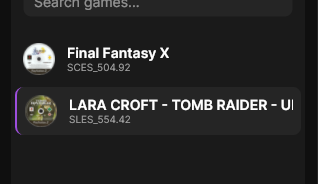
- Identify: Extract the internal serial (e.g.,
SCES_541.23). - Fetch Title: Get the official game title from our API.
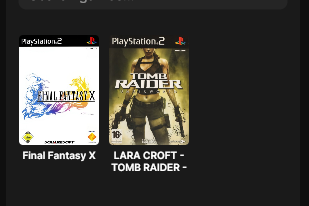
- Download Art: Download the front cover, back cover, and disc art.
All artwork is automatically resized and saved into your ART/ folder with the correct naming scheme (e.g., SCES_541.23_COV.png).
Library Organization
When you click Install, OPLNova moves or copies the game to your library path and renames it to follow the OPL standard:
Games larger than 1GB are placed in the DVD/ folder, while smaller games are placed in the CD/ folder.
Changing Game Names
If you're not happy with the automatically fetched title, you can easily change it within the app. OPLNova will automatically rename the file in your library to match the new title.